IT, Administrator, RDP, Remote Desktop
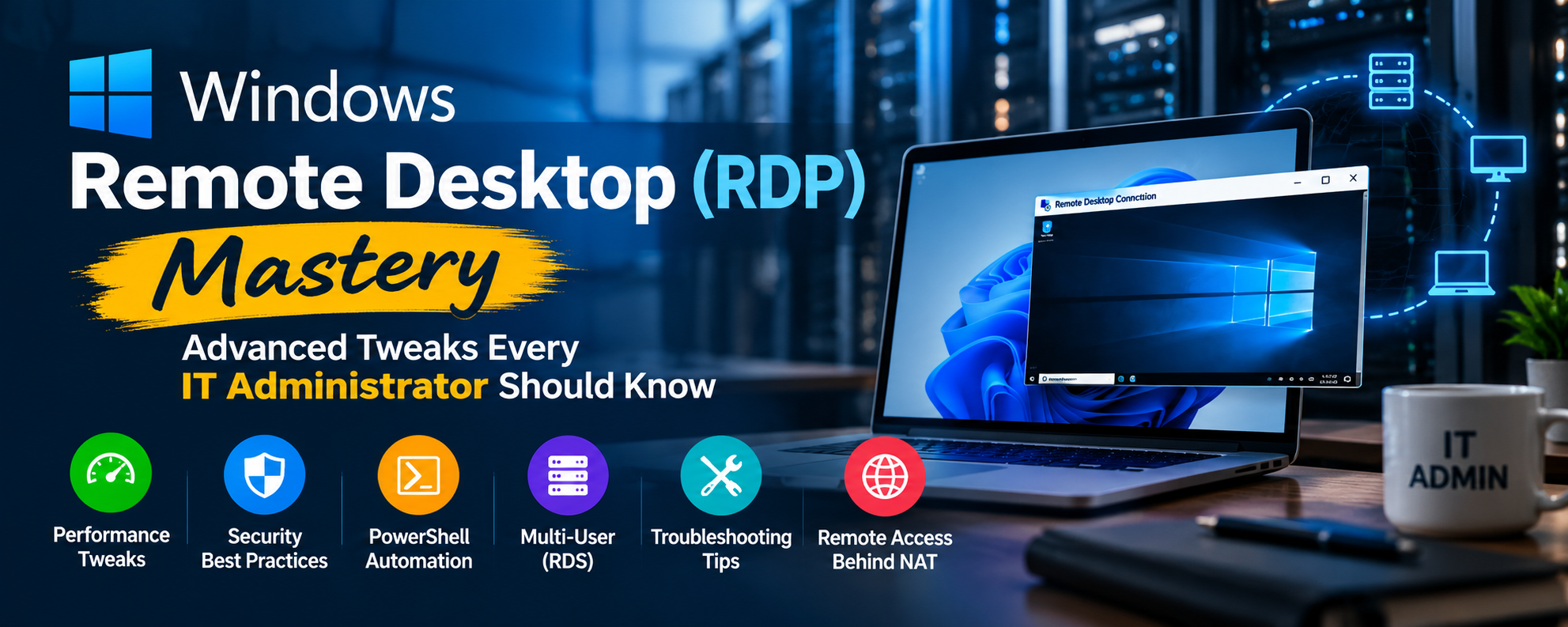
Windows RDP Mastery: Advanced Tweaks Every IT Administrator Should Know
3 min readAdvanced Windows RDP Tweaks for IT Administrators, IT, Administrator, RDP, Remote Desktop
Author: M.A Rahman
For IT administrators and support engineers, Windows Remote Desktop Protocol (RDP) is more than a remote access tool—it’s a powerful system administration solution. With the right tweaks, you can improve performance, automate management, enhance security, and troubleshoot remote systems more efficiently.
Here are some essential and advanced RDP features worth knowing.
1. Advanced RDP Performance Optimization
Optimize your remote sessions by reducing unnecessary graphical effects, lowering display resolution when bandwidth is limited, and enabling persistent bitmap caching.
Launch Remote Desktop with multiple monitors:
```cmd mstsc /multimon ```
Save frequently used server configurations in `.rdp` files to avoid repeatedly configuring display, device, and connection settings.
2. Advanced RDP Security
Protect your remote infrastructure with these practices:
- Network Level Authentication (NLA): Authenticate users before establishing a full session.
- Remote Desktop Gateway: Provide controlled remote access without exposing RDP directly to the internet.
- Multi-Factor Authentication (MFA): Add an additional authentication layer through a supported access solution.
- Group Policy: Restrict clipboard, drive, printer, and device redirection.
- Account restrictions: Apply least privilege and limit access to authorized administrators.
Changing the default port from TCP 3389 may reduce background scanning noise, but it is not a substitute for proper security controls.
3. PowerShell: Manage Remote Computers Without a GUI
Not every task requires an interactive desktop. PowerShell Remoting can automate routine administration across multiple Windows systems.
```powershell Invoke-Command -ComputerName SERVER01 -ScriptBlock { Get-Service } ```
Use it to inspect services, collect system information, automate maintenance, and perform repetitive administrative tasks. PowerShell Remoting must be configured and secured appropriately.
4. Multiple RDP Sessions and Remote Desktop Services
For environments supporting multiple users, Remote Desktop Services (RDS) provides centralized session hosting, user management, and session controls.
Administrators can configure:
- Session limits and disconnected-session cleanup.
- Remote Desktop licensing and deployment.
- User access through collections and appropriate policies.
- Resource redirection and session security.
- Centralized access through RD Gateway.
Standard Windows desktop editions and Windows Server RDS deployments have different capabilities and licensing requirements.
5. Advanced RDP Troubleshooting
Diagnose connectivity problems quickly with built-in Windows tools.
Check network connectivity:
```powershell Test-NetConnection SERVER01 -Port 3389 ```
Check the Remote Desktop service:
```powershell Get-Service TermService ```
Check the configured RDP port:
```powershell Get-ItemProperty ` 'HKLM:\SYSTEM\CurrentControlSet\Control\Terminal Server\WinStations\RDP-Tcp' ` -Name PortNumber ```
Also inspect Windows Firewall rules, DNS resolution, authentication policies, and Terminal Services event logs.
6. Advanced Tip: Secure Access to PCs Behind NAT
Need to access a Windows computer that has no public IP address?
A VPN, Remote Desktop Gateway, or properly designed outbound reverse-tunnel solution can enable controlled remote access without opening inbound RDP ports on the remote network. Such solutions should use strong authentication, encrypted transport, access controls, and auditing.
7. RDP Alternatives for Specialized Administration
RDP is excellent for graphical administration, but other tools can complement it:
- Windows Admin Center: Browser-based management of supported Windows servers and PCs.
- PowerShell Remoting: Command-line administration and automation.
- Microsoft Remote Desktop Services: Centralized multi-user remote sessions.
- Remote Assistance: Interactive support for another user's session, where supported.
Final Thoughts
Mastering Windows RDP means going beyond simply opening `mstsc.exe`. Combine performance tuning, PowerShell automation, centralized session policies, proactive troubleshooting, and secure remote access to build a more efficient IT administration environment.
For IT professionals, the real power of RDP lies not just in connecting remotely, but in managing systems securely, intelligently, and at scale.
What is your favorite advanced Windows RDP trick? Share it with the IT community!